

- Create an AWS Connection
The AWS Elastic Load Balancer Certificate Sync requires the following IAM permissions for Infisical to sync certificates to your load balancers:ACM Permissions:
acm:ListCertificates, acm:DescribeCertificate, acm:ImportCertificate, acm:DeleteCertificate, acm:ListTagsForCertificateELB Permissions: elasticloadbalancing:DescribeLoadBalancers, elasticloadbalancing:DescribeListeners, elasticloadbalancing:DescribeListenerCertificates, elasticloadbalancing:AddListenerCertificates, elasticloadbalancing:RemoveListenerCertificates, elasticloadbalancing:ModifyListenerThese permissions allow Infisical to import certificates to ACM and attach them to your load balancer listeners.- Infisical UI
- API
-
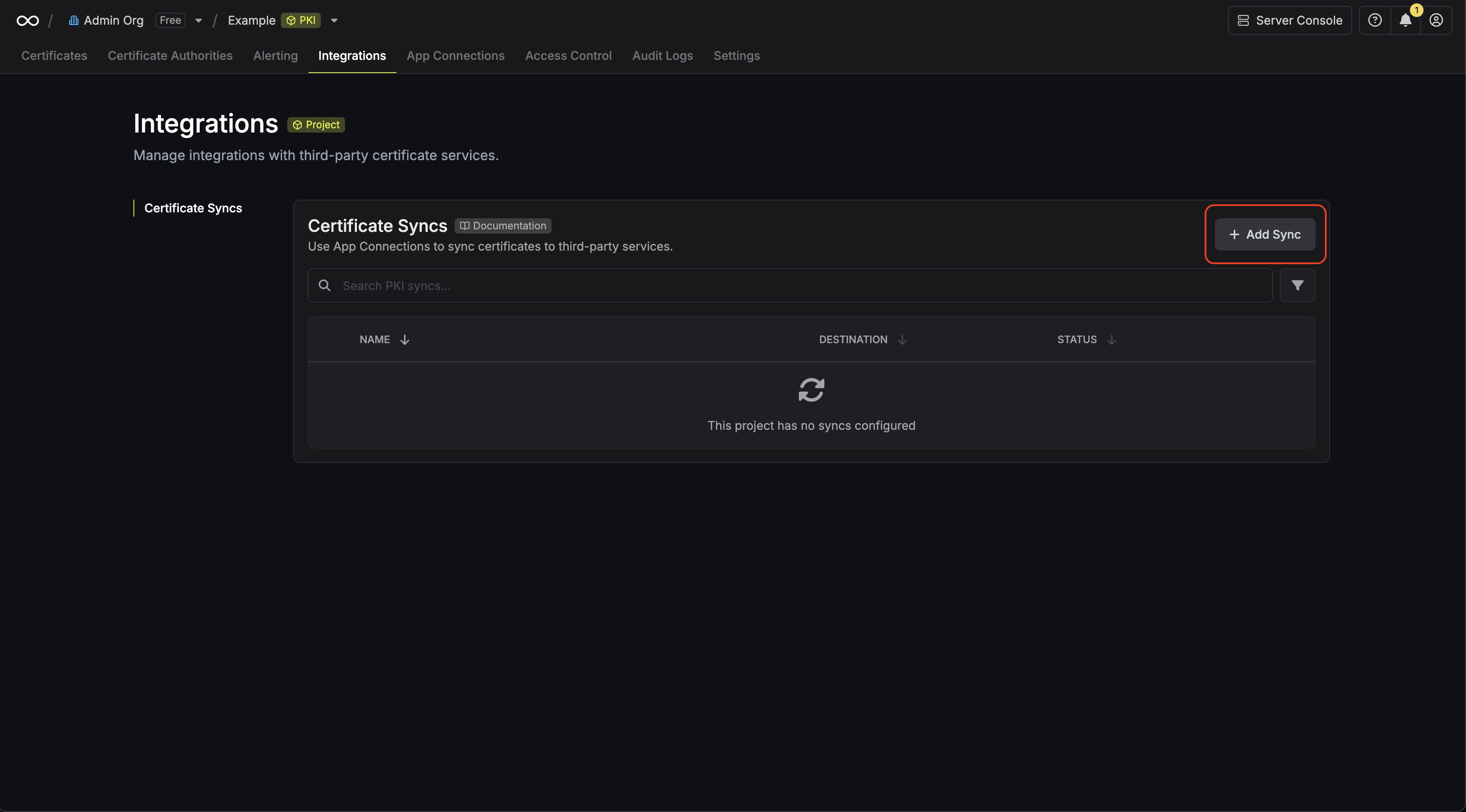
Navigate to Project > Integrations > Certificate Syncs and press Add Sync.
-
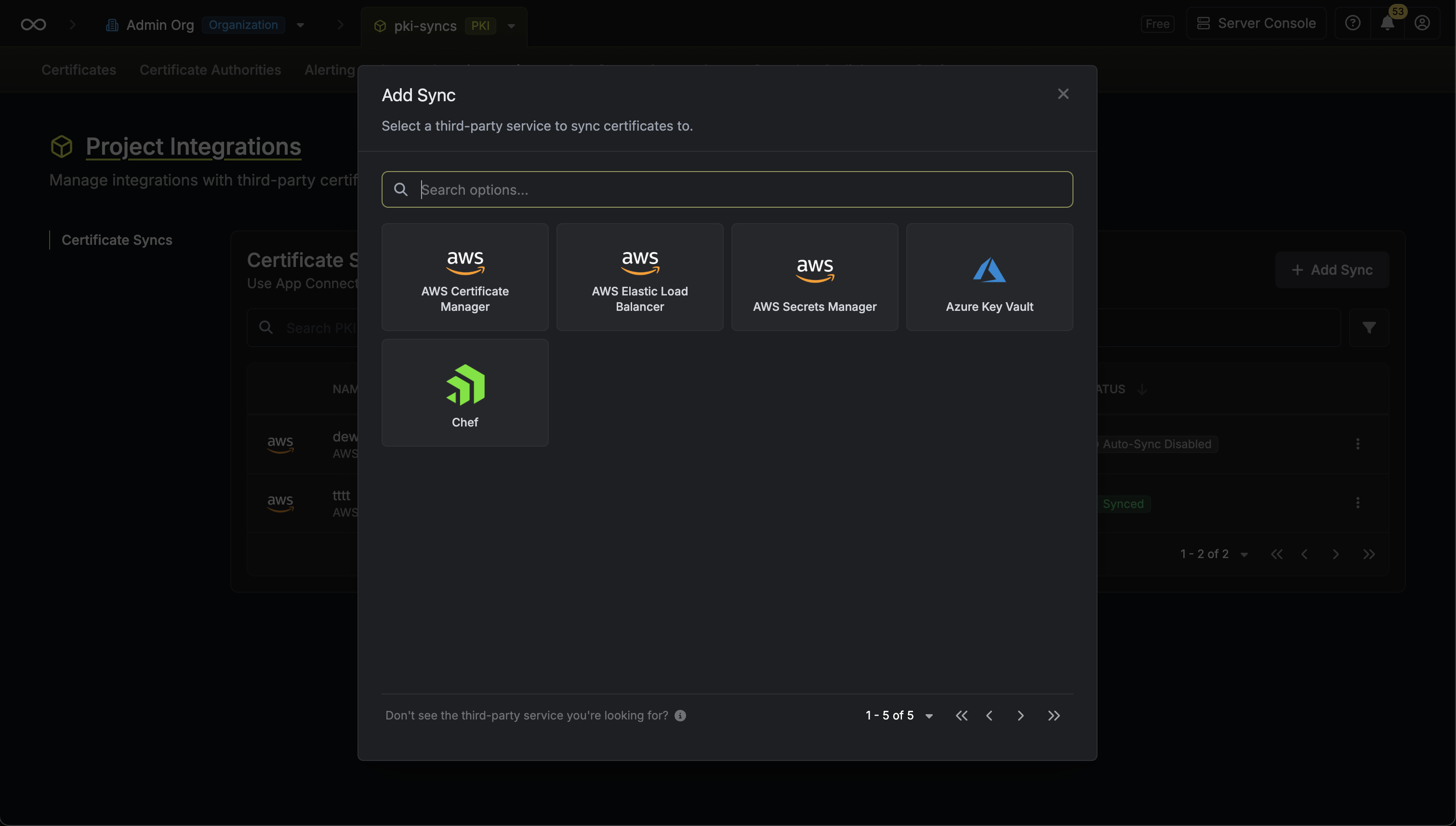
Select the AWS Elastic Load Balancer option.
-
Configure the Destination to where certificates should be deployed, then click Next.
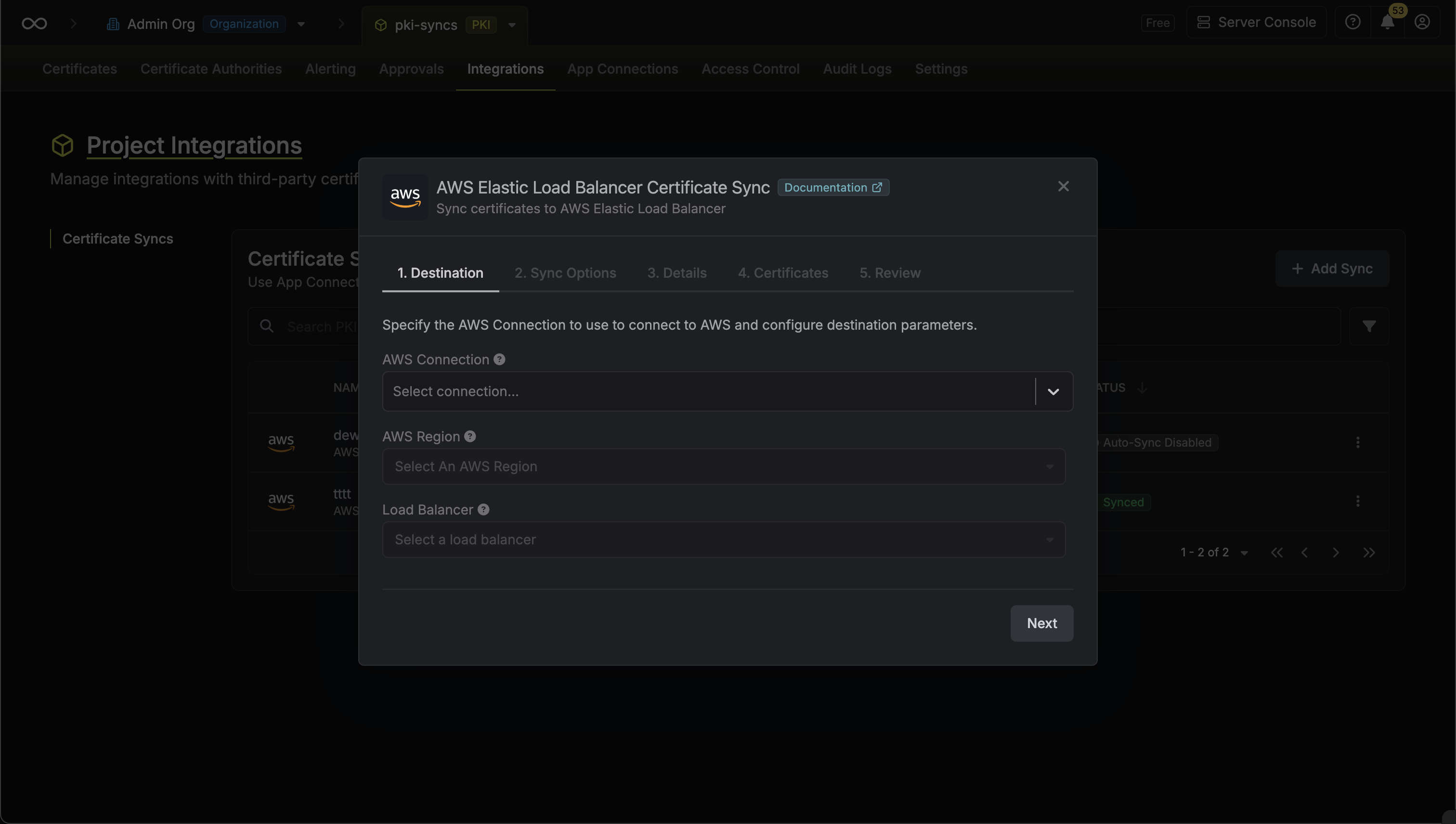
- AWS Connection: The AWS Connection to authenticate with.
- AWS Region: The AWS region where your load balancer is located.
- Load Balancer: Select the Elastic Load Balancer to attach certificates to.
- Listeners: Select one or more HTTPS/TLS listeners to attach certificates to.
- Configure the Sync Options to specify how certificates should be synced, then click Next.
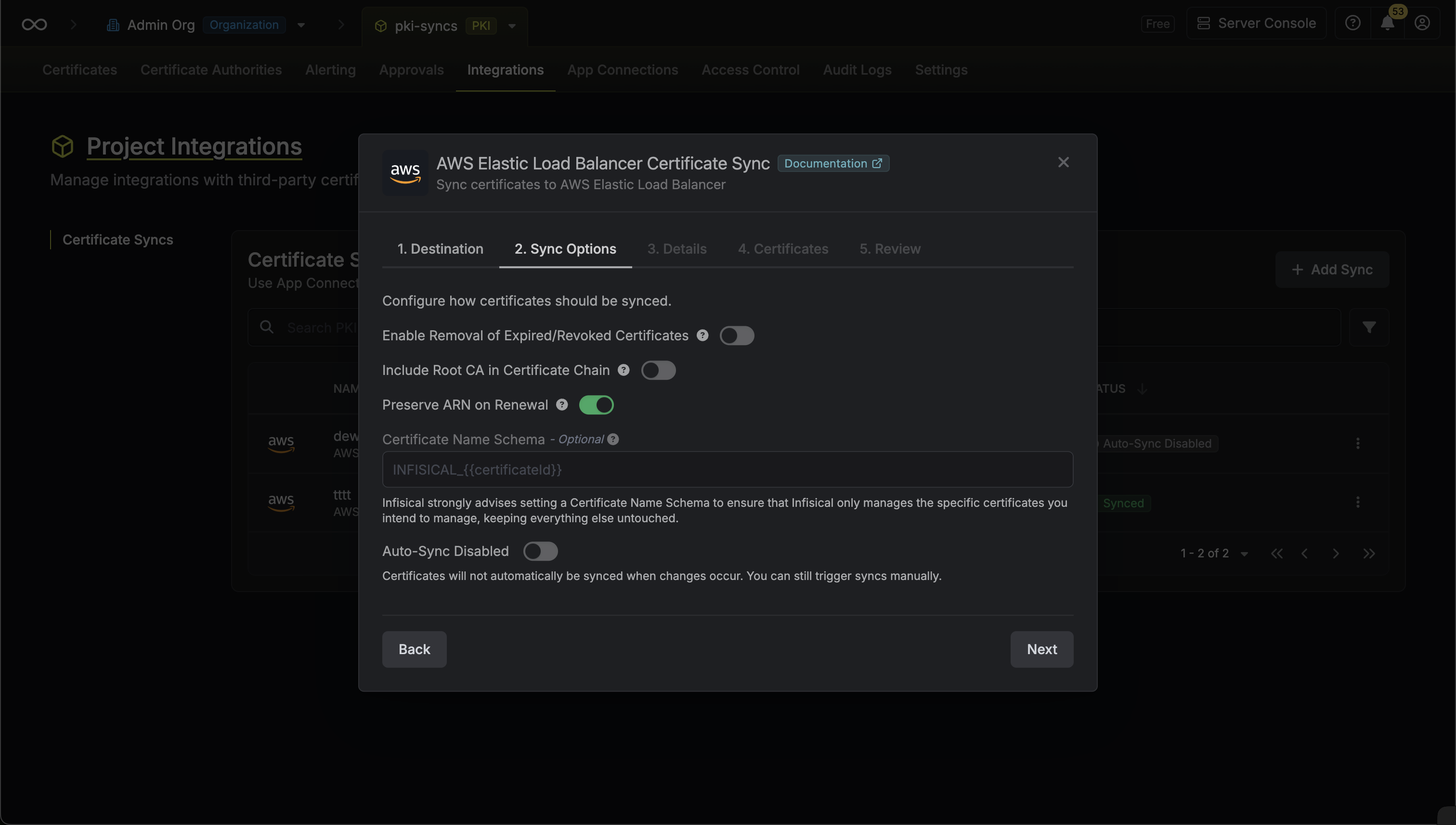
- Enable Removal of Expired/Revoked Certificates: If enabled, Infisical will remove certificates from listeners and delete them from ACM when they are no longer active in Infisical.
- Preserve ARN on Renewal: If enabled, Infisical will sync renewed certificates to ACM under the same ARN as the original synced certificate instead of creating a new certificate with a new ARN.
- Include Root CA: If enabled, the Root CA certificate will be included in the certificate chain when syncing to ACM. If disabled, only intermediate certificates will be included.
- Certificate Name Schema (Optional): Customize how certificate tags are generated in ACM. Must include
{{certificateId}}as a placeholder for the certificate ID to ensure proper certificate identification and management. If not specified, defaults toInfisical-{{certificateId}}. - Auto-Sync Enabled: If enabled, certificates will automatically be synced when changes occur. Disable to enforce manual syncing only.
-
Configure the Details of your AWS Elastic Load Balancer Certificate Sync, then click Next.
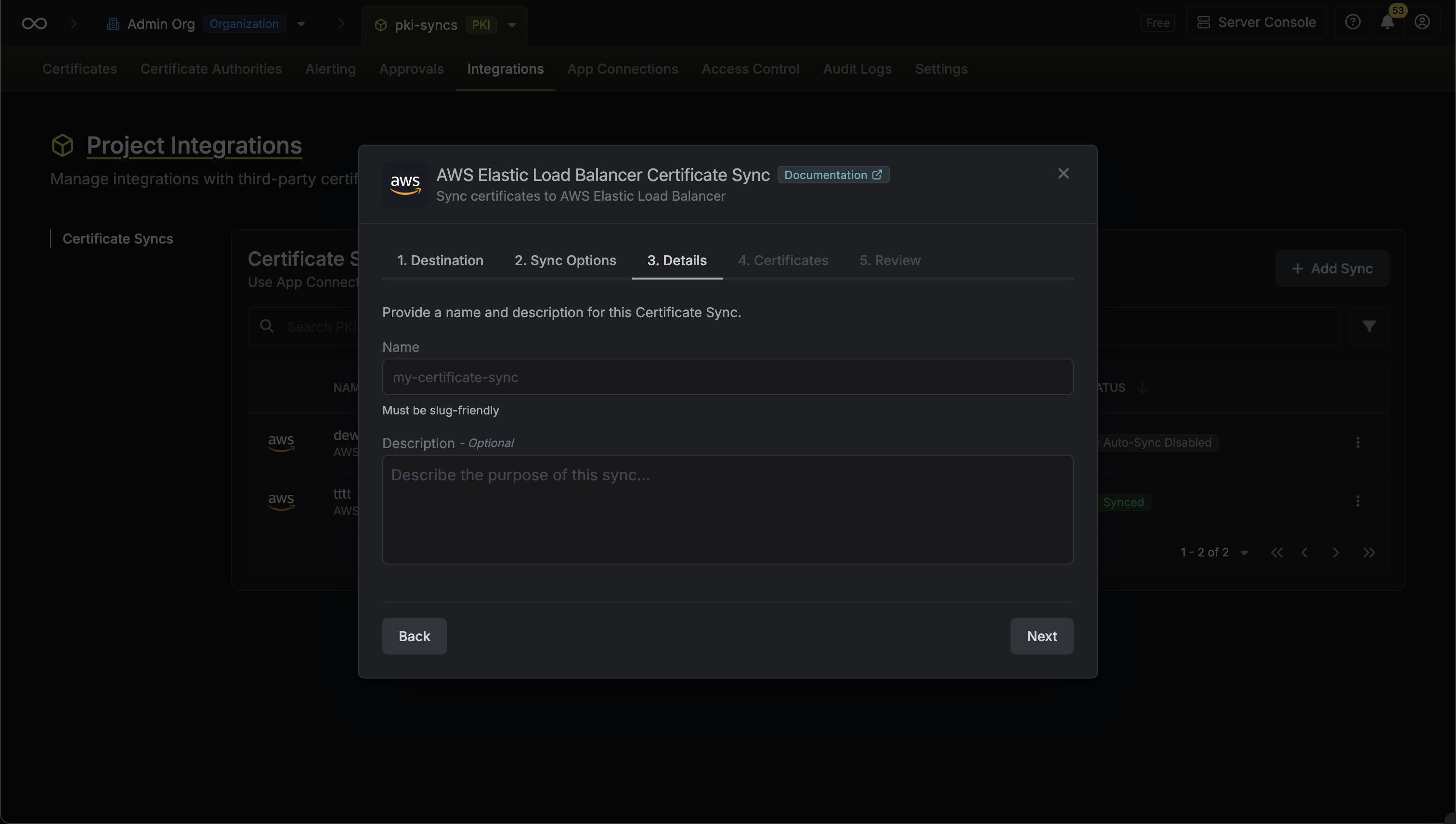
- Name: The name of your sync. Must be slug-friendly.
- Description: An optional description for your sync.
-
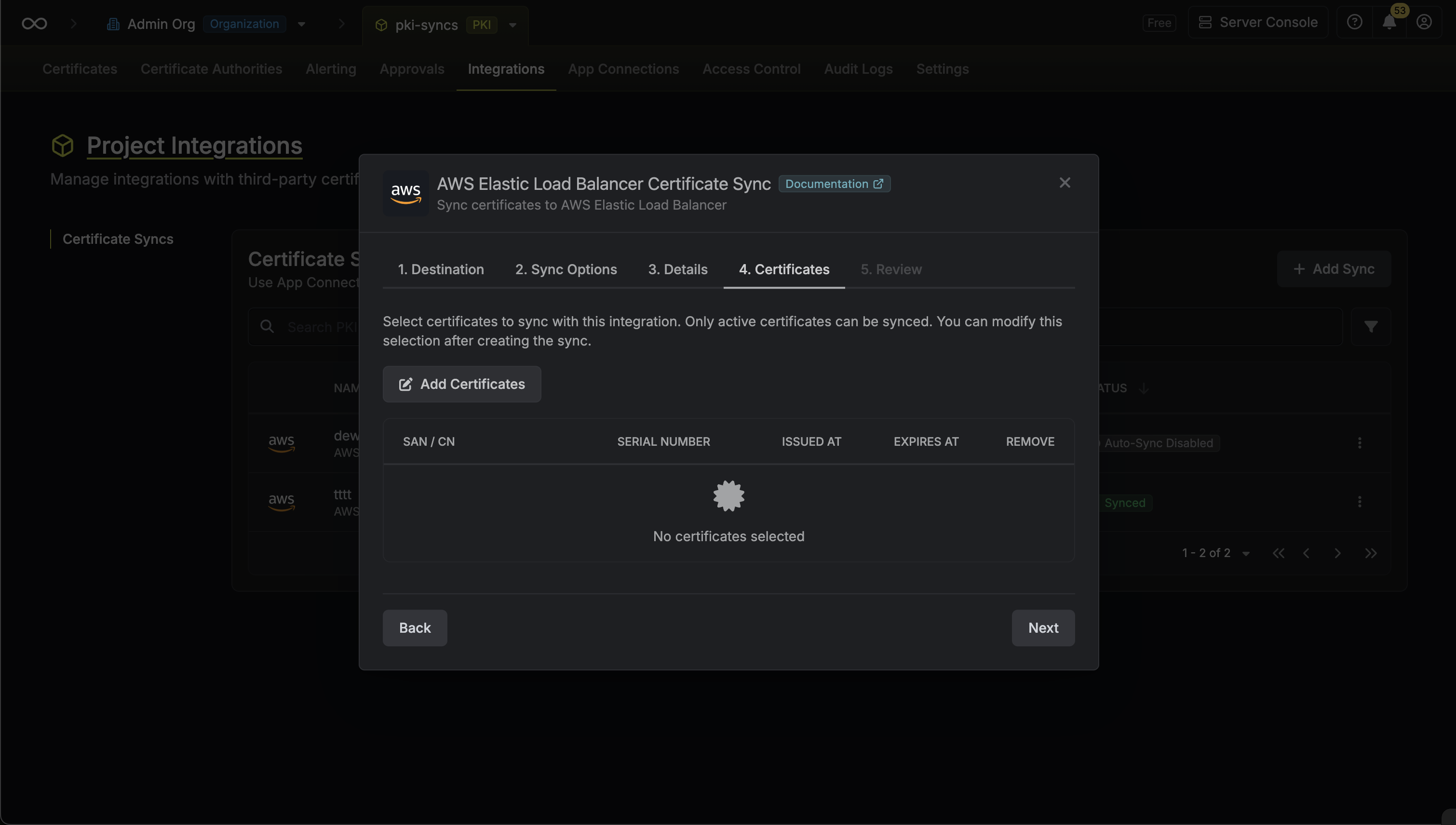
Select which certificates should be synced to AWS Elastic Load Balancer.
-
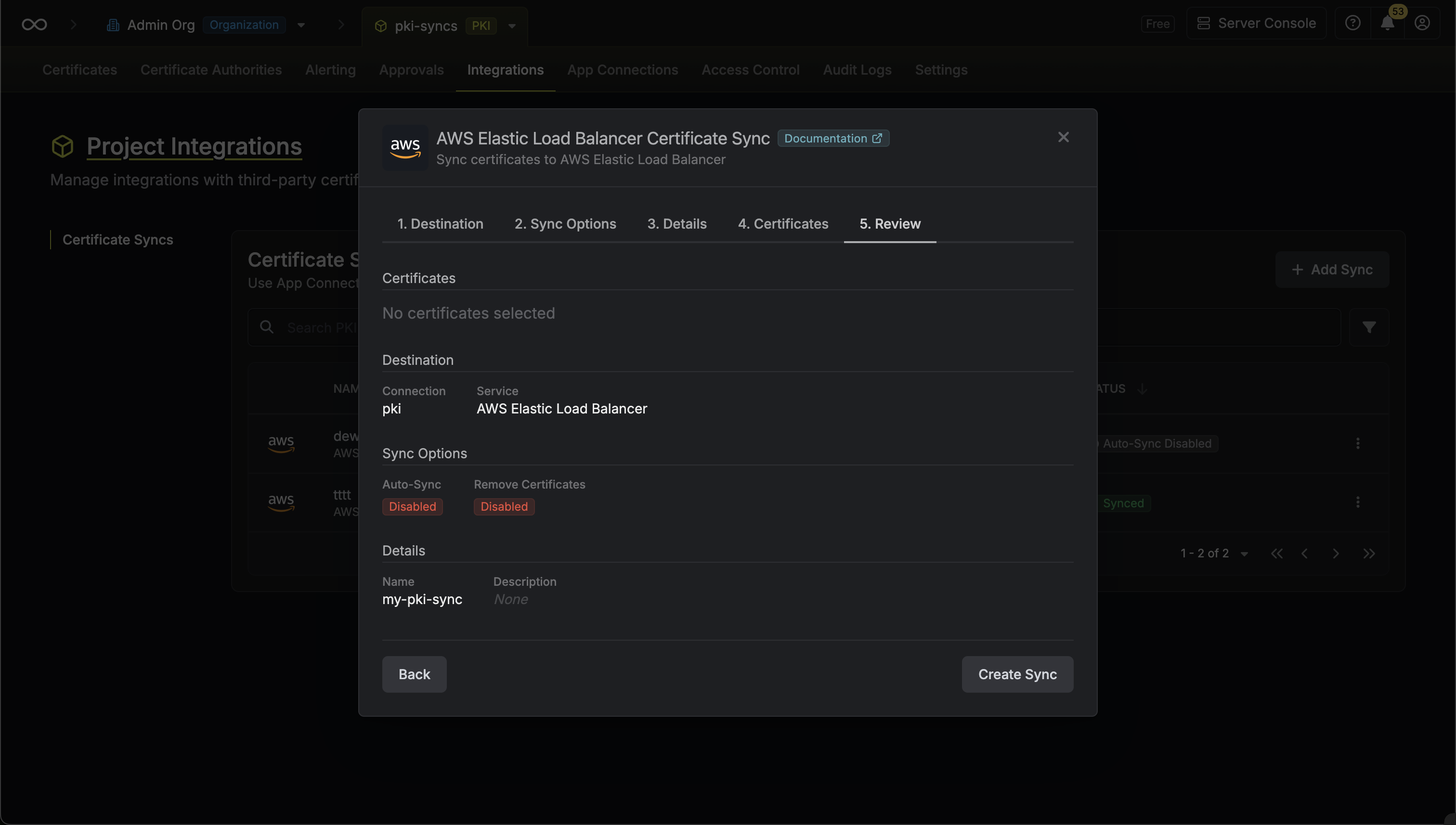
Review your AWS Elastic Load Balancer Certificate Sync configuration, then click Create Sync.
-
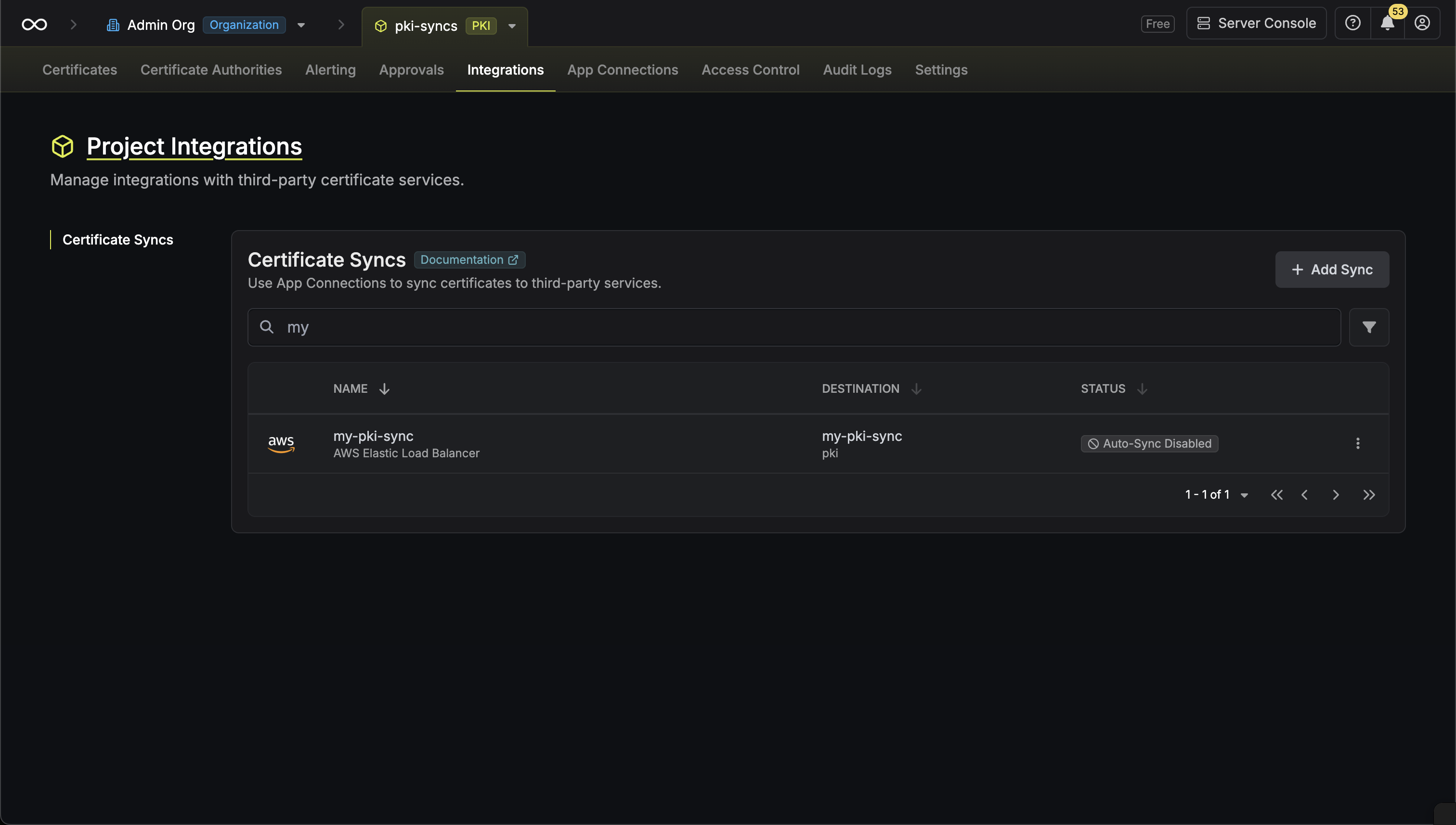
If enabled, your AWS Elastic Load Balancer Certificate Sync will begin syncing your certificates to ACM and attaching them to your listeners.
Certificate Management
Your AWS Elastic Load Balancer Certificate Sync will:- Automatic Deployment: Deploy certificates to ACM and attach them to your configured listeners.
- Certificate Updates: Update certificates in ACM and on listeners when renewals occur.
- Expiration Handling: Optionally remove expired certificates from listeners and ACM (if enabled).
- Tagging: Automatically tag certificates in ACM with an InfisicalCertificate tag for easy identification and management.
Setting Default Certificates
You can set a certificate as the default for all configured listeners. The default certificate is used when a client connects without specifying a hostname via SNI (Server Name Indication).- Infisical UI
- API
You can set a certificate as the default directly from the certificates table in the sync details page. Click the Set as Default button next to the certificate you want to use as the default.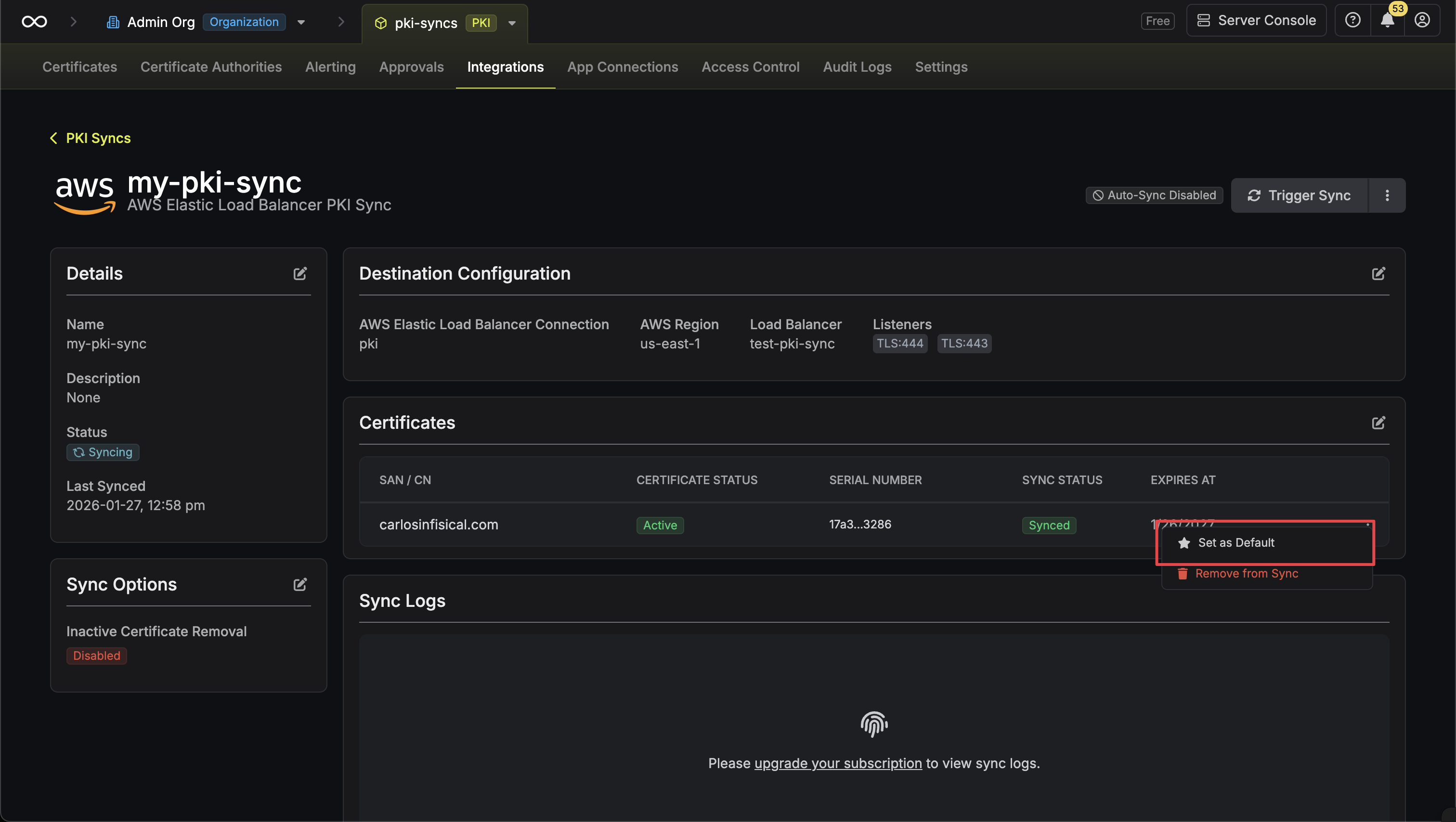
Manual Certificate Sync
You can manually trigger certificate synchronization to AWS Elastic Load Balancer using the sync certificates functionality. This is useful for:- Initial setup when you have existing certificates to deploy
- One-time sync of specific certificates
- Testing certificate sync configurations
- Force sync after making changes
AWS Elastic Load Balancer does not support importing certificates back into
Infisical due to security limitations where private keys cannot be extracted
from AWS Certificate Manager. Only certificates managed by Infisical can be
synced to your load balancers.